Installation of Applications on device
Application Installation Procedure
-
Open the IEM and select the application you want to install.
-
The available configurations and device list will be displayed.
-
Choose the required configuration and select your device.
-
Click Submit to send the installation job to the IE Device.
For more detail you can refer this page Install device apps page
Installation submit
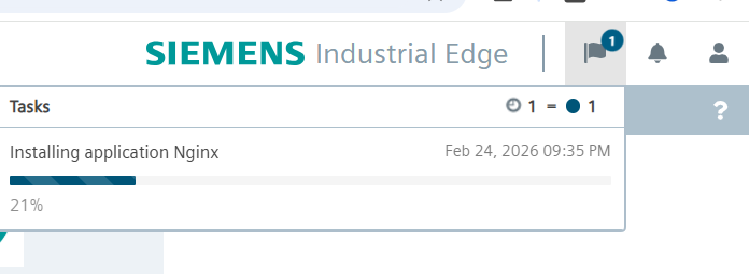
After you submit the installation job from IEM to IE Device, the system will process the request. Once the configured time has passed (default: 1 minute), you will receive a notification at the top-right corner of the IE Device screen indicating the installation status.
App Validation
After an app is installed on the Industrial Edge Device (IE Device), the system analyzes its configuration and runtime behavior
Installation Validations
When the application installation starts, the system performs the following validations:
-
Layer 2 Network Configuration
The Layer 2 network must be properly configured.
If it is not configured, the installation will fail with the message: “App installation failed – Layer 2 network is not configured.”
-
Port Mapping Validation
The external port must:
Be specified as one single port number and a range. Invalid examples:
8080,8081 → Multiple ports are not allowed in one mapping.

8080-8085 → Port ranges are not allowed as reserved port(8081) lies in this range.
Be between 0 and 65535 (inclusive).
Not use host-reserved ports. The following ports cannot be used:
- 22
- 80
- 443
- 4443
- 8081
- 9443
NOTICE
During the Edge IoT Core installation, if you choose to use a port other than the default port 443 and 4443, ensure that the selected port is not reused as the application's external port.
Using the same port for both Edge IoT Core and the application’s external access can lead to port conflicts and connectivity issues. Always configure a different external port for the application to avoid deployment or communication problems.
-
Docker Compose Version Compatibility
The Docker Compose version used in the application must be supported by the system.
If the version is not supported, the installation will fail with an appropriate error message.
-
Memory Limit Validation
The application installation failed if memory limit was not specified in the configuration. If the application includes an NGINX reverse proxy configuration, the Docker Compose YAML file is automatically modified during installation to apply the required proxy settings.
Before modification YML is
services:
  nginx:
    mem_limit: 150mb
After modification YML is
services:
  nginx:
    labels:
      com_mwp_conf_nginx: '[{"isSecureRedirection":false,"headers":"","protocol":"HTTP","port":"80","name":"nginx","rewriteTarget":"/","subPath":"","bypassUrlDecoding":false}]'
    mem_limit: "157286400"
    networks:
      proxynet: {}

networks:
  proxynet:
    name: proxy-redirect
    external: true
Note: If proxy-redirect is not explicitly defined as a network in your docker-compose.yml, the Edge IoT Core automatically adds a default network called proxynet to your application containers. This network is an alias of proxy-redirect and provides the same connectivity. However, it is recommended to explicitly define and use the proxy-redirect network in your docker-compose.yml for clarity and full control over which containers are attached to it.
When you add a reverse proxy configuration to a service, the service is automatically isolated on its own network for routing purposes.
If you want this service to communicate with other services, you must create an internal network and connect those services to it manually. This enables secure service-to-service communication.
For more information you can go edge-app-communication