Creating a device application version
In the "Versions" section, you manage your versions. When you do not have added an version yet to the product, the screen is displayed accordingly. You create your first version by clicking "Create your first version". When you already have created your first version, you create more app versions by clicking "Add Version".
Procedure
-
Click "Versions" on the left side of the details screen.
-
Click "Create your first version" respectively "Add Version".
The "Create New Version" screen is displayed. -
In the "Version" input field, enter the version.
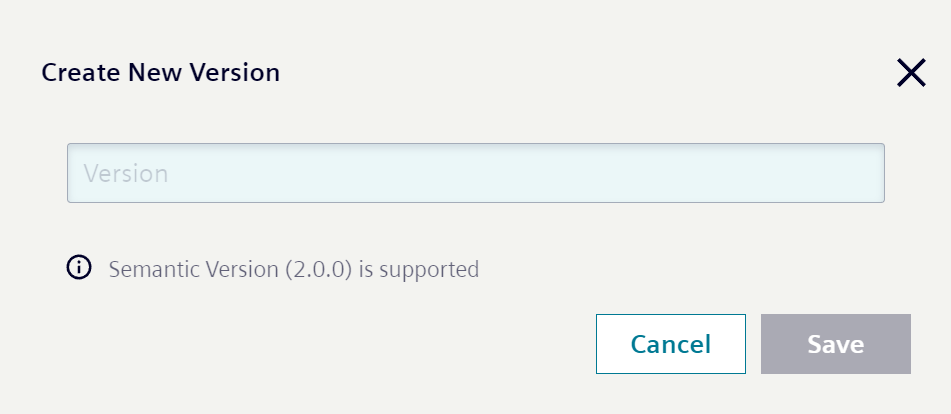 The IE Hub supports Semantic Versioning 2.0.0 standards.
 -
Click "Save".
The version has been created and the details screen is displayed again.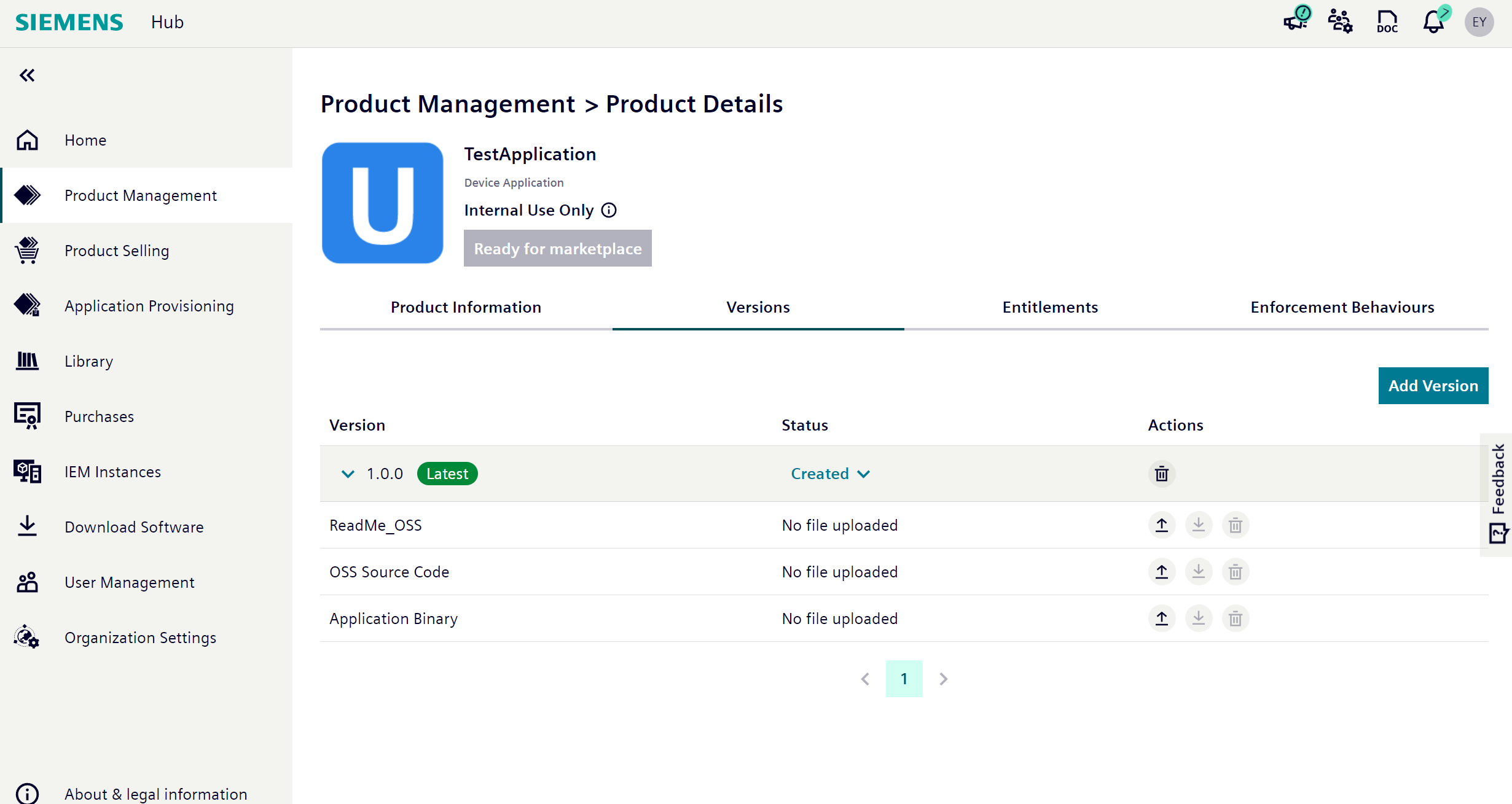 The version is in "Created" status. In this status, you can provide the following 3 files to make your version ready to publish to the IE Hub:
- Readme file: can be .txt, .pdf, HTML and can be packed as archive mentioned below.
- OSS file: can be packed as ".zip", ".tar.gz", ".7z", ".rar".
- Application binary: "*.app" file.
OSS file and source code should fully comply with the license agreement of all the packages used such as GNU GPL license, Apache license, MIT license, etc. The related files are app version based so it is required to provide the new ones for every version.
Warning
If you want to sell your application through the Marketplace, you must accept the Ecosystem Agreement.Readme and OSS files must be uploaded during the creation phase and cannot be uploaded after the creation phase.
NOTICE
The .app file is mandatory for publishing your app to the IE Hub, the other files are optional. The readme file must not exceed 20 GB, the OSS file 20 GB and the.app file 20 GB. The *.app file can be unsigned. When activating the version, a request will be sent to the App Signing Service to sign the app.
-
Click the
 icon for uploading the application binary file.
The "Upload File" screen is displayed.
icon for uploading the application binary file.
The "Upload File" screen is displayed. -
Click "Choose File" and select the respective *.app file you want to upload.
-
Click "Upload".
The file is getting uploaded. The progress of the file upload is displayed in the version table.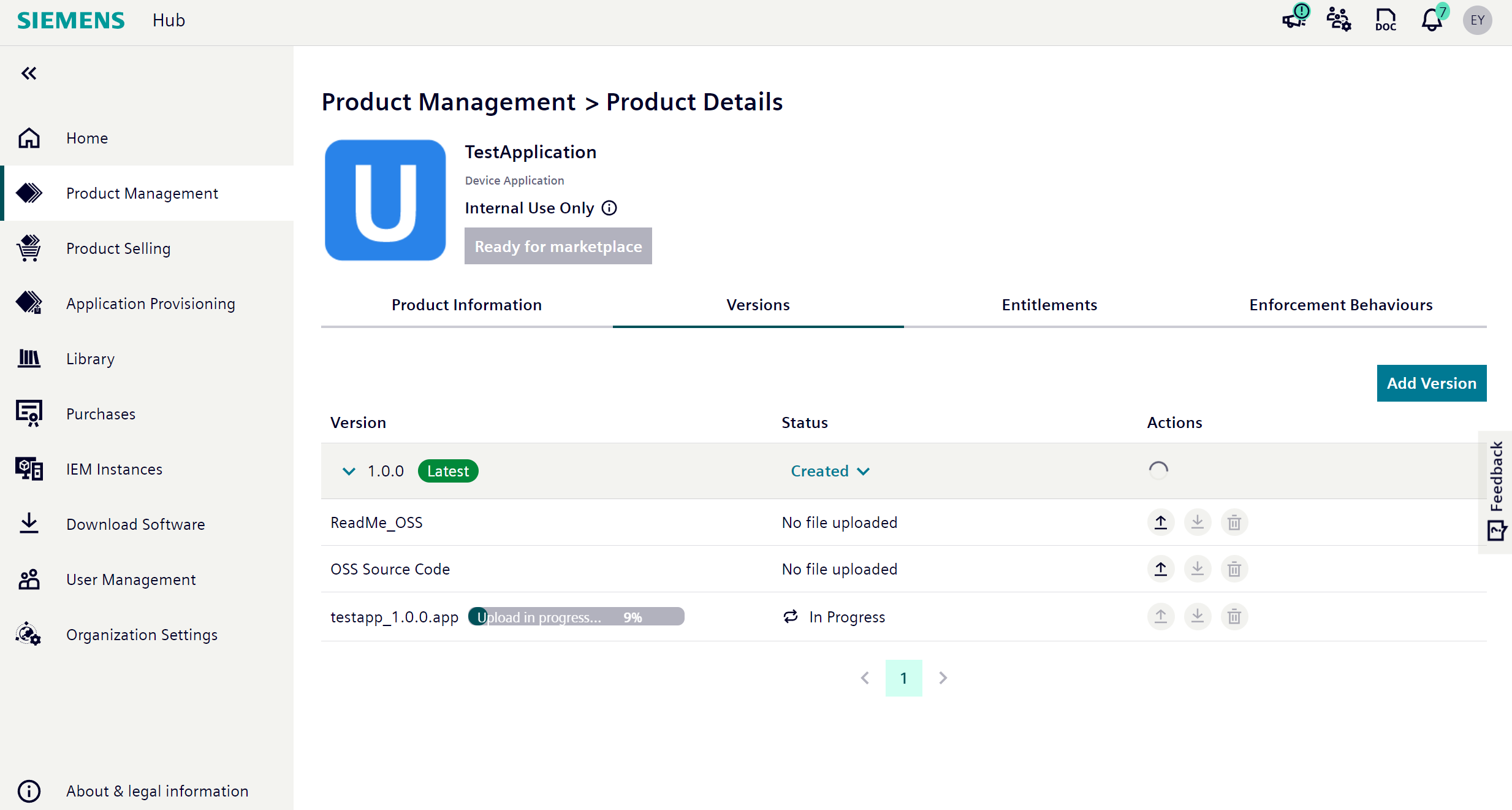
-
Wait until the file is uploaded.
If you try to close or refresh the page or if you sign out from the IE Hub during the file upload, a warning is displayed indicating that the file upload will be cancelled. As soon as the file upload is completed, a virus scan will be started automatically. During the virus scan, the following steps can be passed through:- Virus Scan In Queue: The virus scanning request is received but has not started yet.
- Virus Scan In Progress: Virus scanning has started and is ongoing.
- Virus Scan Failed To Proceed: The virus scan was not successful and has been stopped due to some error. In this status, you can restart the virus scan via the retry button.
- Virus Found: The upload was canceled due to a virus respectively threat.
- Virus Scan Passed: The upload was successful and no virus was found.
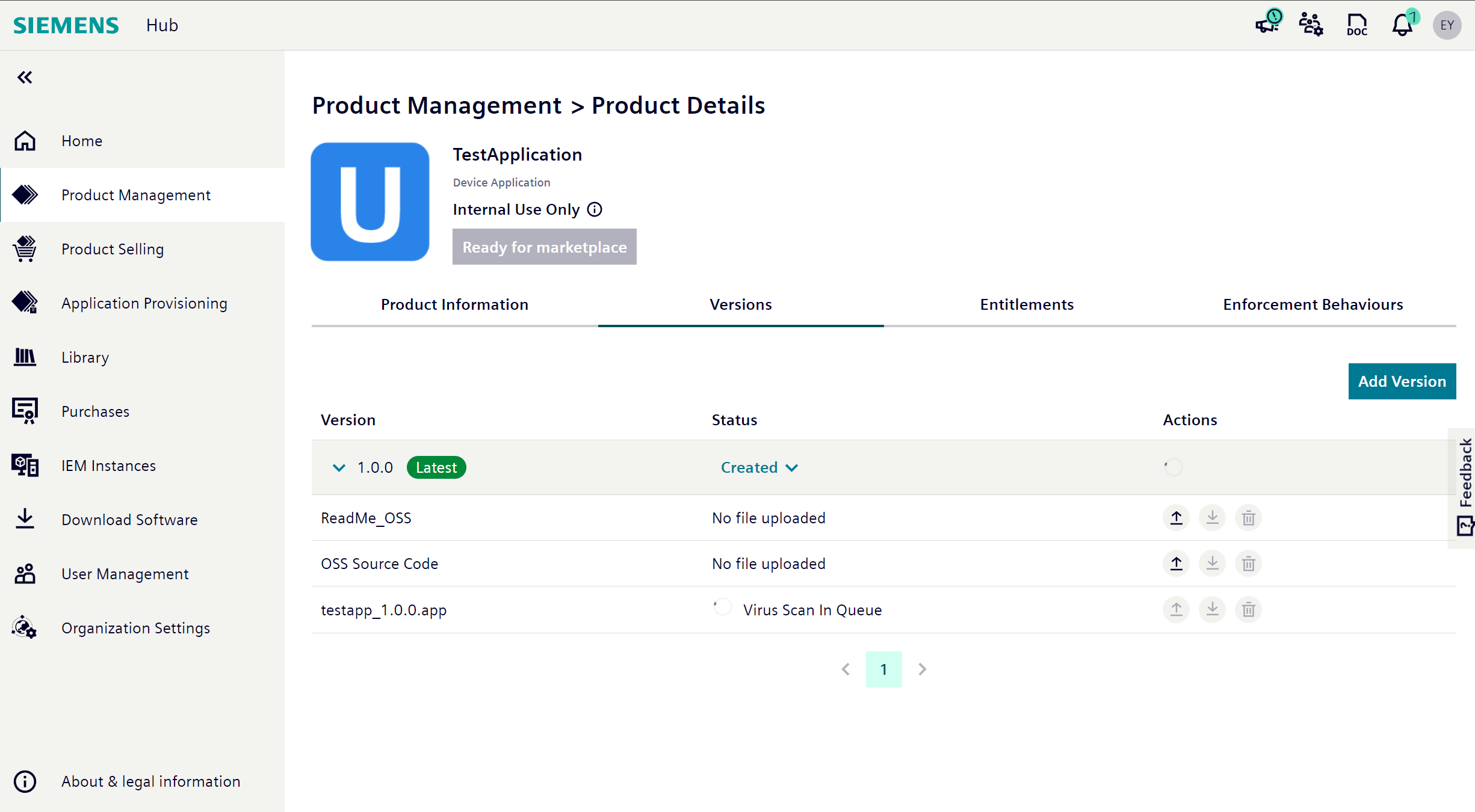 Depending on the number of scanning requests in the queue and the size of the files, the virus scan might take a while.
The virus scan will be performed cyclical.
On every weekend, all version files are being scanned if any changes occurred in the virus scan service.
If a virus has been found, an info icon will be displayed of that uploaded file in the "Actions" column.
In that case by clicking the icon, the virus scan report is displayed, as follows for example.
Depending on the number of scanning requests in the queue and the size of the files, the virus scan might take a while.
The virus scan will be performed cyclical.
On every weekend, all version files are being scanned if any changes occurred in the virus scan service.
If a virus has been found, an info icon will be displayed of that uploaded file in the "Actions" column.
In that case by clicking the icon, the virus scan report is displayed, as follows for example.
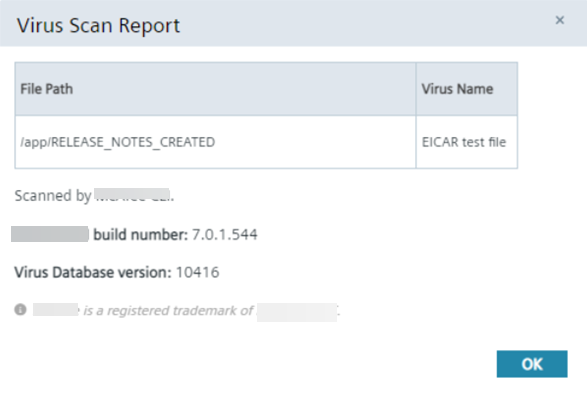 In this report, the file path and name of the virus is provided.
Additionally, some scanning parameters, for example virus scan software and version, are displayed for the app provider to locally reproduce the environment in which the virus was detected.
In this report, the file path and name of the virus is provided.
Additionally, some scanning parameters, for example virus scan software and version, are displayed for the app provider to locally reproduce the environment in which the virus was detected.
NOTICE
False positive virus scan It might happen that a false positive virus scan occurs which means that the virus scanner detects a virus although the app provider can prove the opposite. In this case, the Industrial Edge Support must manually check the detected virus. In case the app provider is right and proves that it is not a virus, the Industrial Edge Support manually passes the virus scan.
-
Wait until the virus scan is completed and until it is passed.
Only if no virus is found, you can activate and release the version. After the upload was successful and no virus was found, the status of the respective file is displayed as "Virus Scan Passed".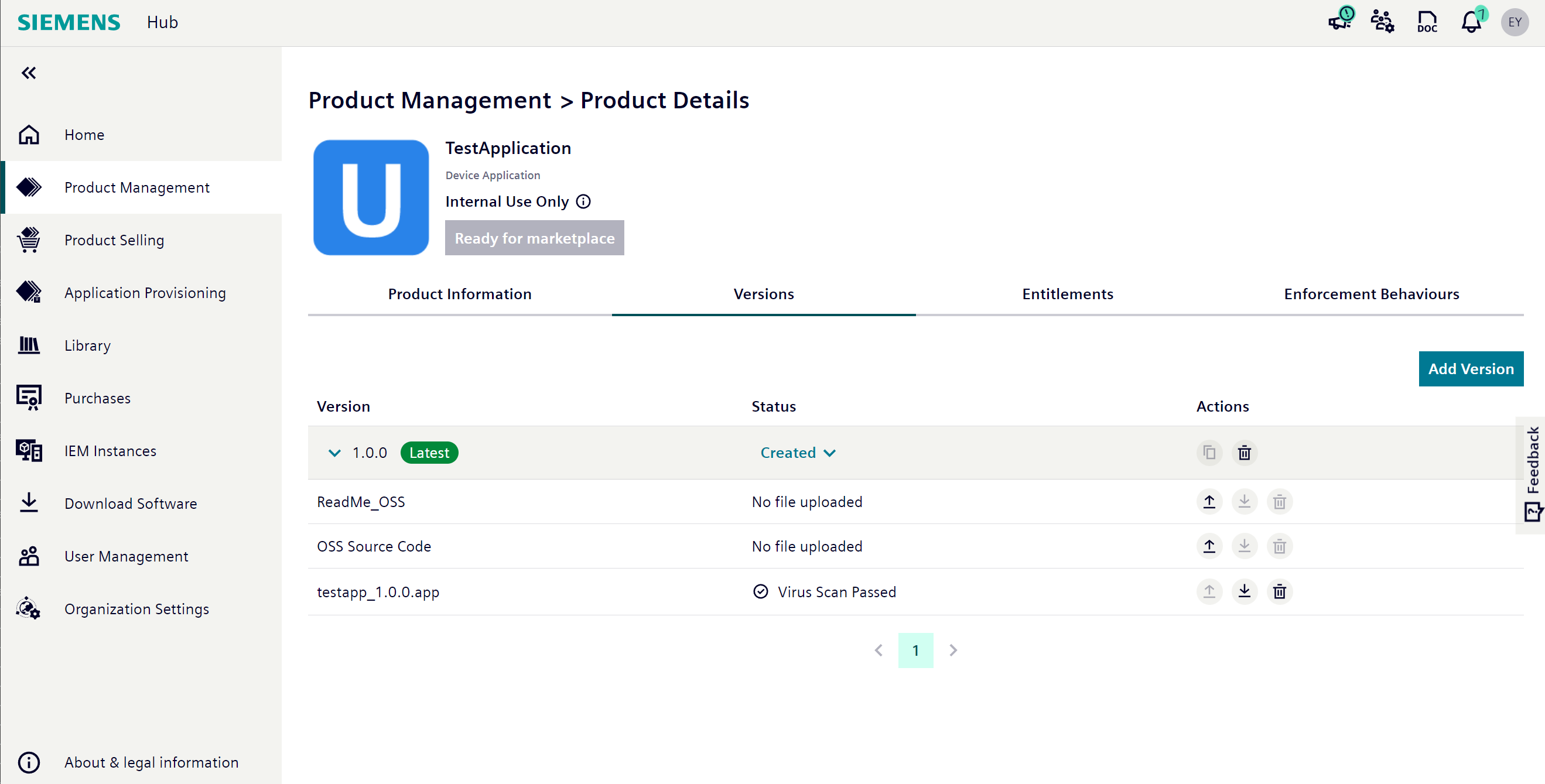 You can now activate and release the version.
 -
Optionally, upload the readme and the OSS file in the same manner.
Once the version is activated, you cannot add the readme or OSS file afterwards.
NOTICE
Latest version The "Latest" label in the "Version" column indicates the latest semantic version.