Update Device Applications
This page will walk you through the process of updating Device Applications within your IEM, ensuring your operations always run on the most current software.
This topic describes the regular update flow in the IEM UI.
If the target application version includes an Installation Guidance bundle uploaded in IE Hub, IEM performs additional checks when you start the update. In this case, IEM can allow the update, show a warning, or block the update based on the rules from that bundle.
To upload the bundle to IE Hub, see How to Upload an Installation Guidance Bundle to IE Hub.
For details about these additional Installation Guidance checks and when they apply, see Installation details.
Overview
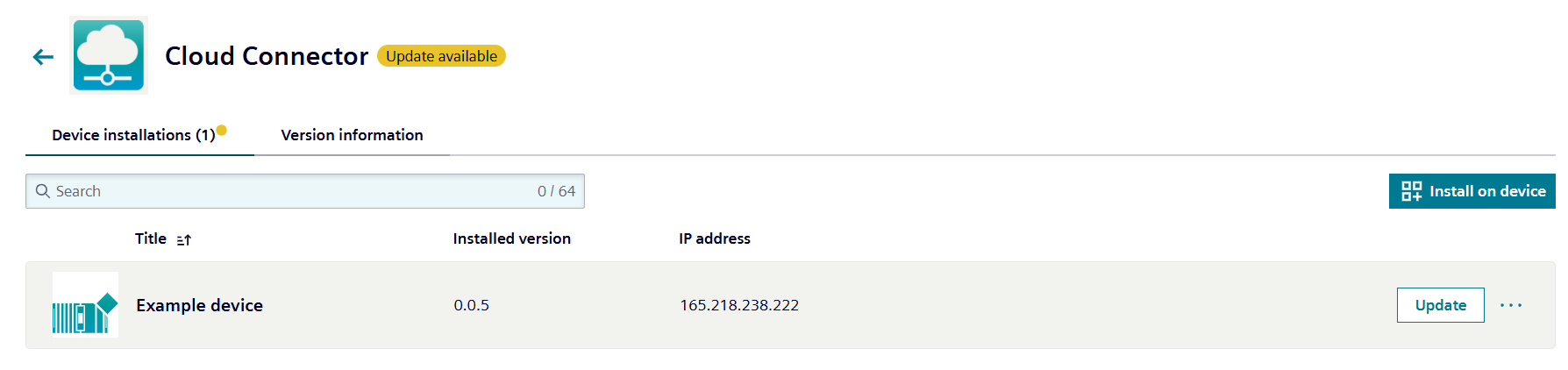
When an installed application version differs from the public version in the IEM, you will notice:
- A prominent
Updatebutton - A yellow
Update availablelabel
Additionally, the action menu always provides access to the Update page, regardless of version status.
Note that an update may involve either upgrading to a newer version or downgrading to a previous version of the application.
Update a Device Application
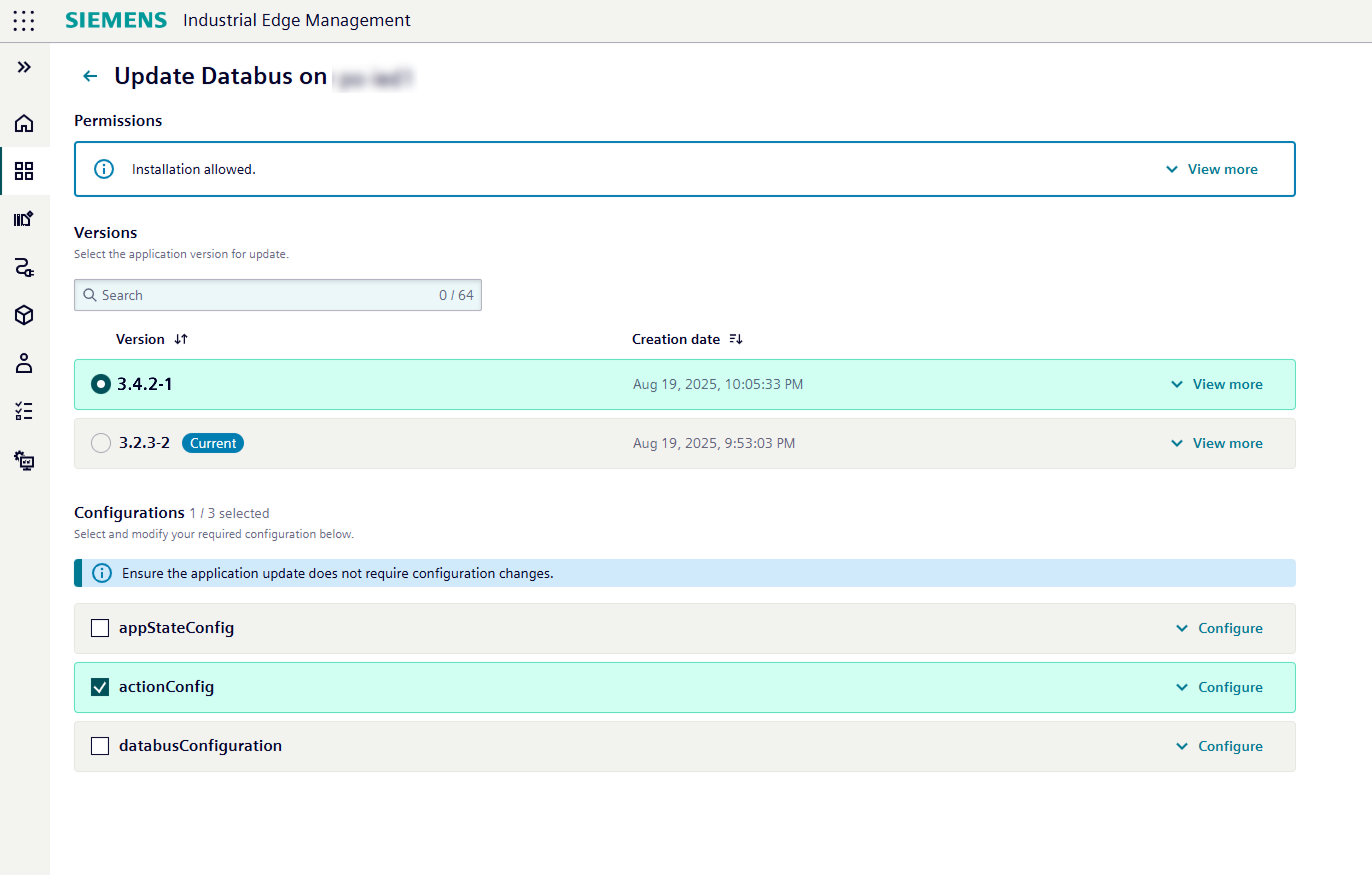
When you click the Update button, you'll be directed to the update application page where you can:
- View application version permissions.
- See version information (current and latest available).
- Edit the application's configuration to be applied during the update.
The permissions display and configuration editing process during updates mirror those used during initial application installation.
Installation details
Before IEM updates an application, it checks the selected device, the application's permissions, and its configuration requirements.
Application permissions
An application can have three types of permissions: Allowed, Warning or Blocked.
If any app version has Blocked permissions, the device card will show the label Not allowed to be installed and can not be selected for installation. These appversions cannot be selected for installation, ensuring your system's integrity.
Installation Guidance
Installation Guidance defines the rules IEM checks before an update can continue, warn the user, or be blocked.
Prerequisites
Before the installation starts, the target application version must have an Installation Guidance bundle uploaded in IE Hub. The bundle contains the rules that IEM evaluates during installation.
NOTICE
Installation Guidance rules are defined by the application developer and uploaded in IE Hub. The user encounters these rules only when starting an installation from the IEM UI for an application version that contains such a bundle.
To create a bundle for your own apps, see How to create a Rego bundle.
During the update
When a user starts the update in IEM, the system evaluates the Installation Guidance rules for the target application version. IEM checks whether the defined conditions are met in the current environment.
The rules can check, for example:
- Application dependencies
- Version requirements
- Warning conditions
- Blocking conditions
Update an app configuration
For installed applications, you can also update configurations independently through either the Device Applications details page or the Device details page.
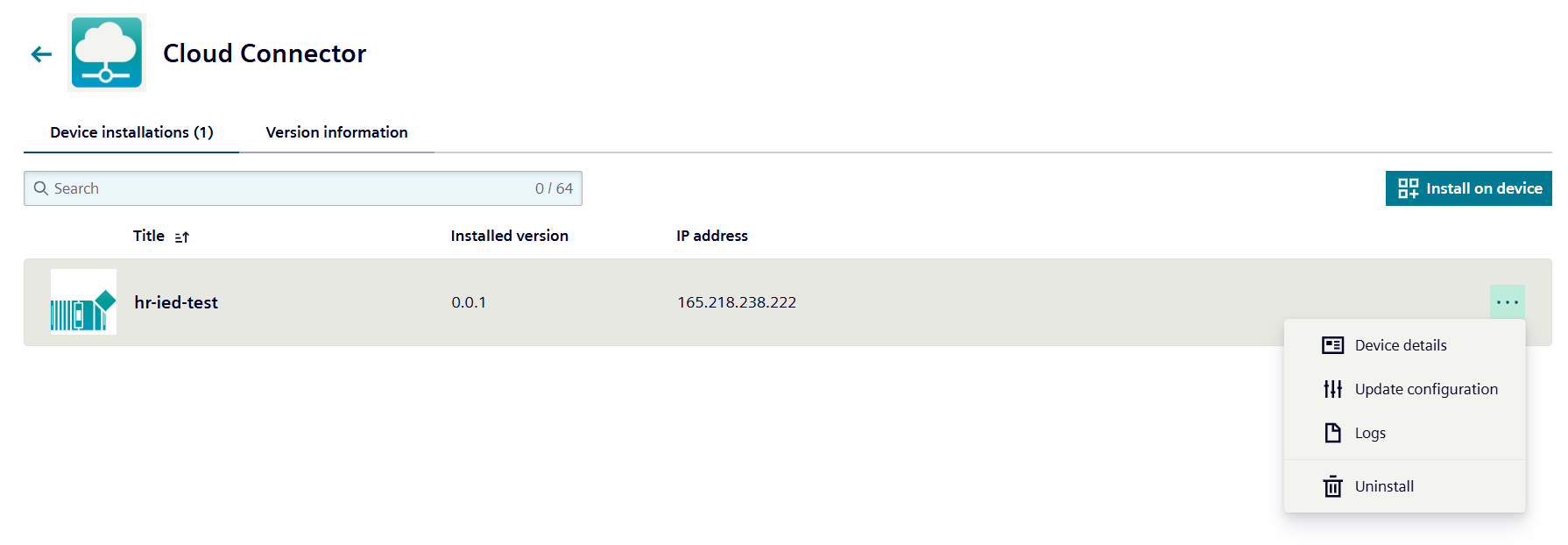
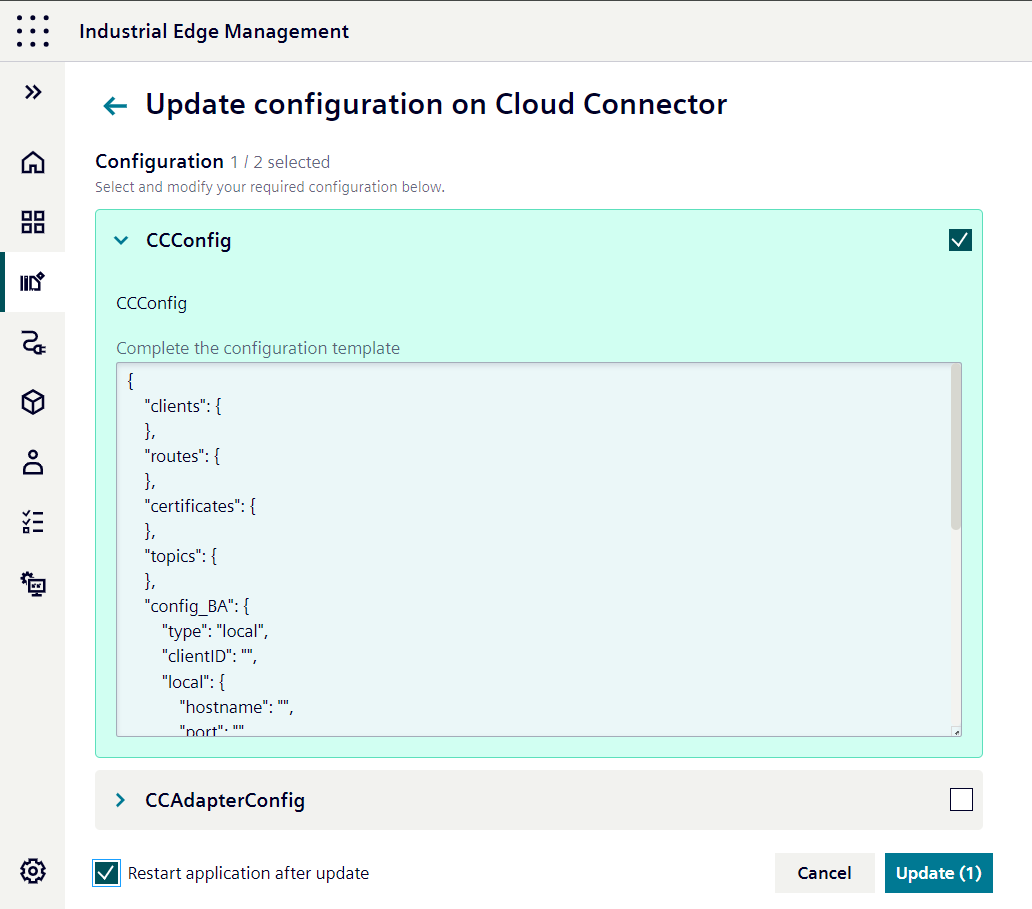
Clicking the Update configuration button takes you to the update configuration page.
You can edit and select configurations that shall be updated.
Optionally, you can define that a restart of the application will be performed as part of the configuration update.