LAN network and Layer 2 network access settings
Use the Lan Network tile to review and edit your network and Layer 2 network access settings.
Overview
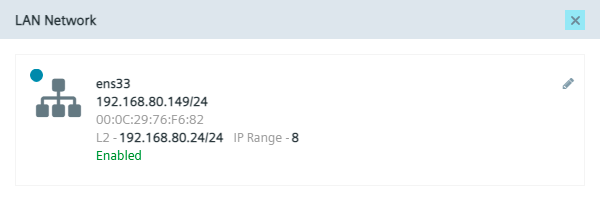
Click the LAN Network tile to check the network properties of your Industrial Edge Device.
The overview includes following information:
- Interface Name
- IP Address and Subnetmask (if connected)
- MAC Address
If L2 network access is enabled, additional parameters are displayed:
- L2 IP address
- Netmask
- IP address range
NOTICE
All subnet masks for networks, including the Layer 2 network, are displayed in Classless Inter-Domain Routing (CIDR) format. Instead of network interface names, interface labels can be displayed to refer to the physical network interfaces.
Edit network interface(s) settings
Click the
 icon to edit the network settings.
NOTICE
The configured cellular network currently does not support editing network interface settings; therefore, the edit network interface icon is disabled.
Gateway interface
The gateway interface is responsible for routing traffic between the internal/local network and external networks (such as the Internet).
If only a single network interface is configured, you cannot change the gateway interface selection and the corresponding check box will be disabled. However, you can still change other settings, such as DHCP and Layer 2.
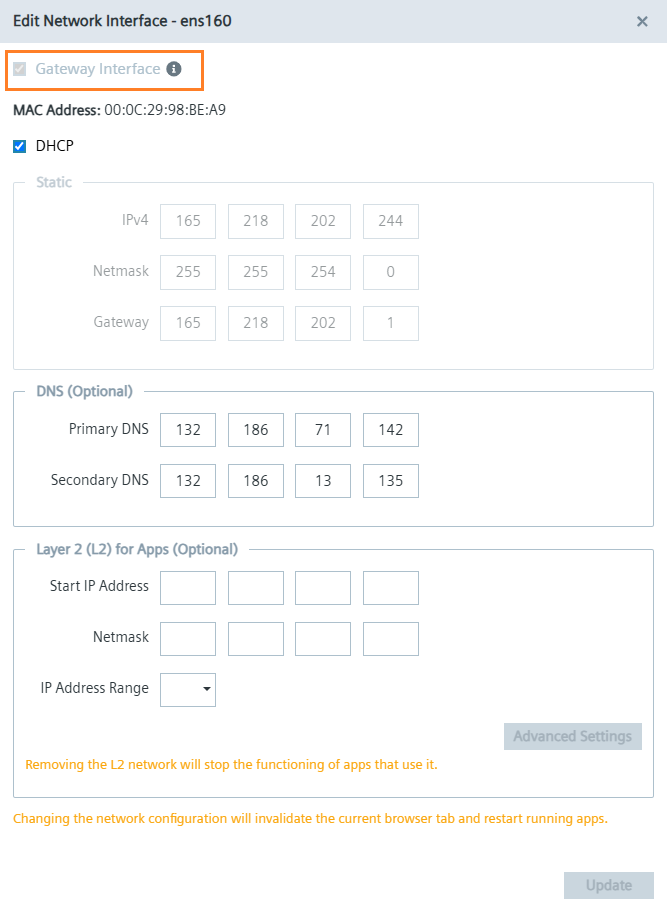
If multiple network interfaces are configured, the Gateway Interface checkbox for the currently active gateway interface will be disabled to prevent it from being removed directly as the gateway.
To change the gateway, select a different network interface.
The 'Gateway Interface' checkbox for the selected interface will then be enabled, allowing you to designate it as the new gateway.
Network
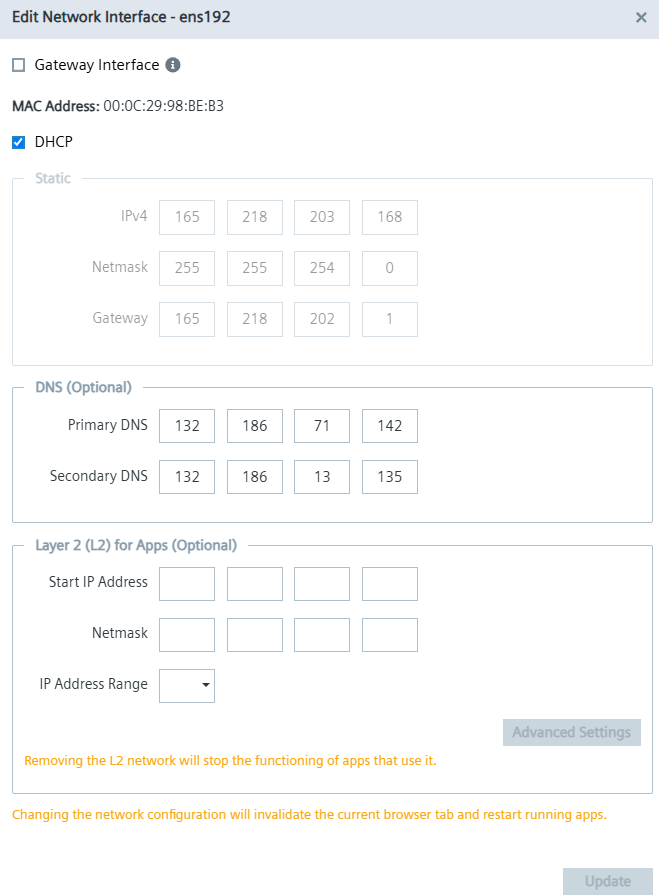
Network configuration is available through either automatic DHCP assignment or manual entry of the IPv4 address, netmask, and gateway. DNS server settings follow the same configuration options.
NOTICE
Enabling the Gateway Interface option requires a valid gateway IP address. The value 0.0.0.0 is not accepted as a gateway address.
NOTICE
IEDK v1.28.0 - Static IP cannot be set if no valid Ethernet connection is detected.
-
No cable is connected to the device’s Ethernet port, or
-
The cable is connected to the device but not connected to any network equipment on the other end.
Layer 2 network access settings
In the Layer 2 (L2) for Applications section, you can edit the configured Layer 2 network access or create a new one on this Edge Device.
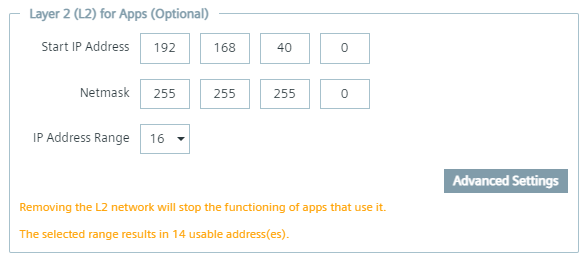
The "Starting IP Address" and "Netmask" define the network to be accessed at Layer 2.
Depending on the Layer 2 network, a certain number of IP addresses are available for the Layer 2 network access of the applications.
In this example, the IP address range shows 16 reserved IP addresses. Since 1 IP address is reserved for the gateway and 1 is reserved for the network itself, 14 IP addresses are available for selection.
NOTICE
Configuring Layer 2 network access settings with only 2 reserved IP addresses is not valid because they are reserved by default for the gateway and the network.
Advanced Layer 2 Network Access Settings
Click Advanced Settings to specify which IP addresses can be used for Layer 2 network access for applications in the defined IP range.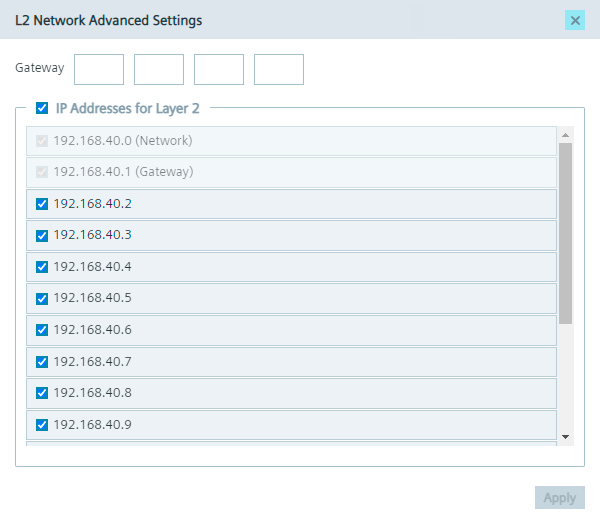 Selecting an IP address allows the IP address to be used for Layer 2 network access for applications; not selecting an IP address disables the use of the IP address.
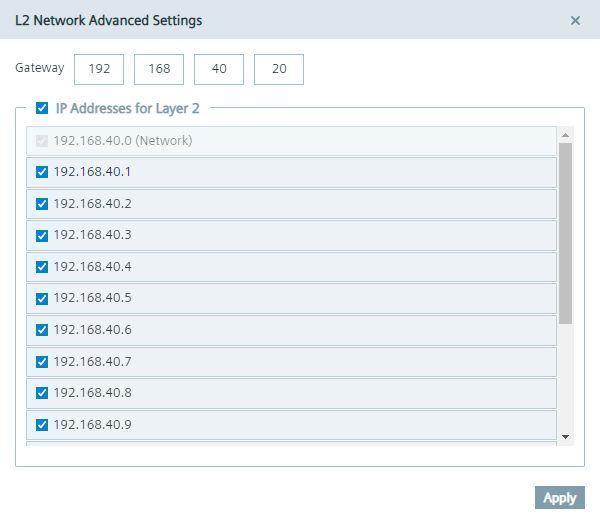
By default, the gateway is within the predefined IP range. The Gateway field allows you to specify an IP address for the gateway that must be within the specified subnet to get another available IP.
Selecting an IP address allows the IP address to be used for Layer 2 network access for applications; not selecting an IP address disables the use of the IP address.
By default, the gateway is within the predefined IP range. The Gateway field allows you to specify an IP address for the gateway that must be within the specified subnet to get another available IP.
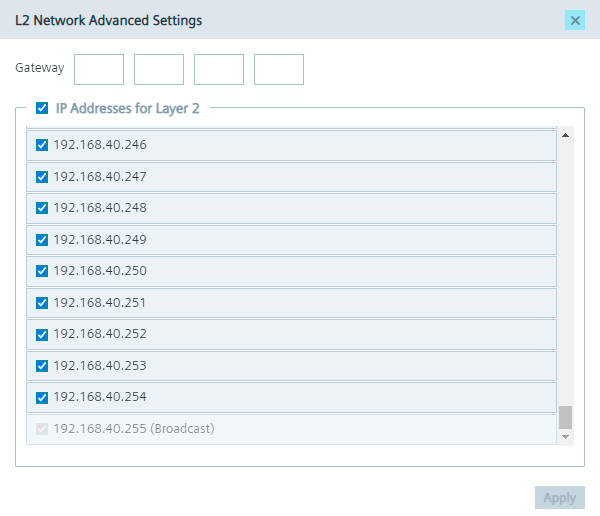
 If you select the maximum available IP address range, 1 IP address is also reserved for broadcast, as shown below for example.
 Click "Apply" to save the Layer 2 network access changes.
NOTICE
Applications that facilitate Layer 2 access are restarted when Layer 2 network access settings are changed, or stopped when Layer 2 network access is removed.
NOTICE
Layer 2 network access requires dedicated network interfaces that are not configured for isolation in the Resource Manager. Configuring the same network interface for both application isolation and Layer 2 access is not supported.
You find more information on the Layer 2 network access in the "Layer 2 network access" and the "New Edge Device - Parameters" subsections in the "Industrial Edge Management - Operation" manual.
Custom Routes
In the custom routes section, you define additional network routing rules on the current network interface.
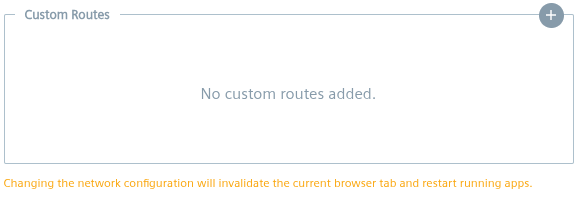
In order to add a new custom route, click the "Add" (+) button on the top right corner of the custom routes section. When the add button is clicked, a new empty custom route will be created and you can fill in the required parameters.
NOTICE
Inappropriate configuration of custom routes can lead to network connectivity issues, including loss of access to the Edge Device (similar to configuring a wrong static IP address). Ensure that you understand the implications of the routes you are adding.
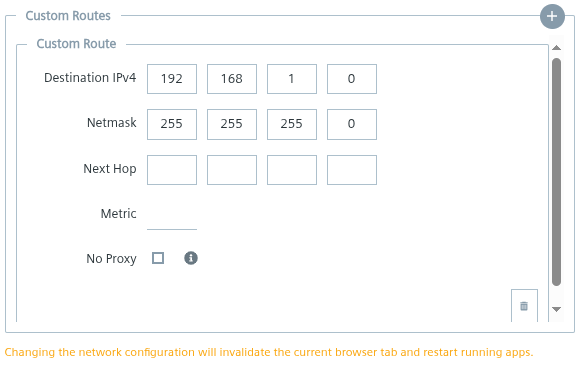
The custom route parameters are:
- Destination IPv4: Required. The destination network in IPv4 format (e.g.,
192.168.1.0). - Netmask: Required. The netmask for the destination network in IPv4 format (e.g.,
255.255.255.0). - Gateway: The gateway (also known as "next hop") IP address in IPv4 format (e.g.,
192.168.1.1). If not specified, the route will be considered directly reachable and no gateway will be used. - Metric: The metric value for the route, which determines the priority of the route (lower values indicate higher priority). If specified, must be greater than
2. Defaults to1000if not specified. Note that metric is only used for identical routes. Narrower routes (with a more specific netmask) will always take precedence over wider routes, regardless of the metric value. - No Proxy: Helper checkbox. If checked, saving the configuration will extend the no-proxy configuration by adding the destination network (e.g.,
192.168.1.0/24), meaning that requests to this destination will not transparently go through the configured proxy server.
With the example values given above, the Edge Device will route traffic destined for the 192.168.1.0/24 network through 192.168.1.1 via the network interface.
In order to remove a custom route, click the "Delete" (Trash) button on the bottom right corner of the respective custom route entry.
When all required parameters are filled in, click the "Update" button to save the custom route configuration along with other configuration.
The following networks cannot intersect with the destination network or gateway in custom routes:
- Configured docker network range
- 127.0.0.0/8
- 169.254.0.0/16
- 240.0.0.0/4
- 0.0.0.0/8
- 192.88.99.0/24
- 192.0.0.0/24
- 100.64.0.0/10
- 192.0.2.0/24
- 198.51.100.0/24
- 203.0.113.0/24
Trying to add a custom route with a destination network or gateway that intersects with one of the above networks, an "Invalid network routes." error response will be generated.