Managing an app
Grouped by none view
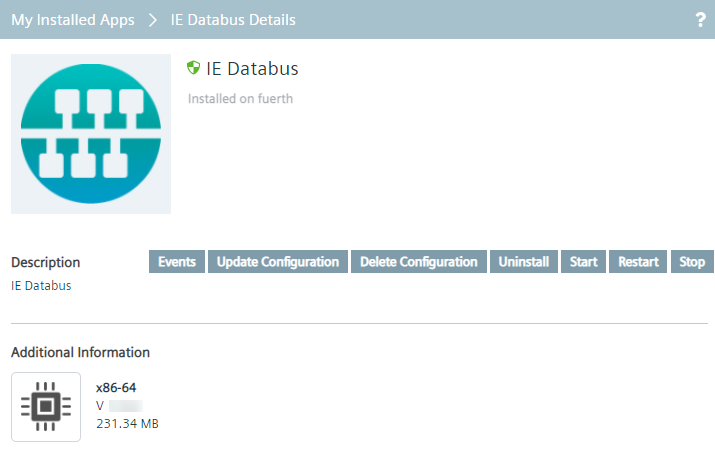
When you click the tile of an app, you open the app details in which you manage the installed app on the specific Edge Device.
The following figure shows the details of the Databus app as an example:
Grouped by Edge Devices view
When you select minimum 1 app by clicking the check box of the app, buttons to manage the app are enabled.
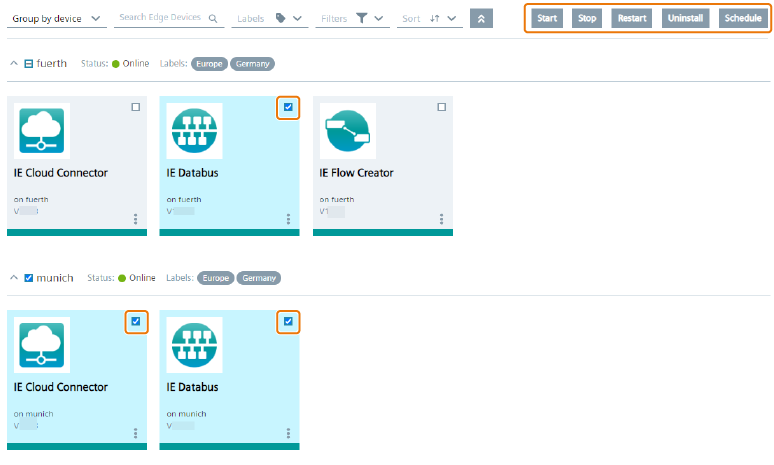
In this way, you can manage more than 1 app at once and you can also schedule, for example, the restart of all selected apps at a specific time.
Available options
To manage your app, the following options are available:
- Events: Display system events when you subscribe to the
Event Serviceduring the creation of the app version in the IE App Publisher. - Update Configuration: Update, edit or select an other app configuration of the app on the specific Edge Device.
- Delete Configuration: If you have created several app configurations, delete app configurations of the app on the specific Edge Device.
- Uninstall: Uninstall the app from the specific Edge Device.
- Start: Start the app on the specific Edge Device.
- Restart: Restart the running app on the specific Edge Device.
- Stop: Stop the running app on the specific Edge Device.
- Schedule: Schedule an app job of selected apps (only available in the grouped by Edge Devices view).
You can execute the options immediately or at a later required time.