Configuring a Layer 2 network access
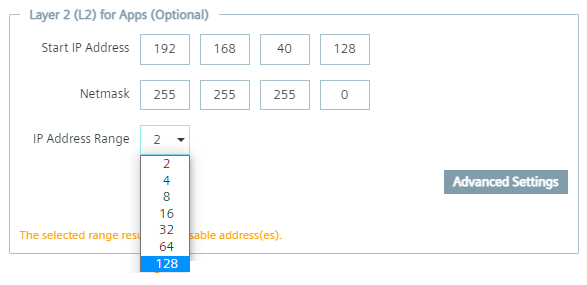
Set up a Layer 2 network access on the Edge Device under the Layer 2 (L2) for Apps section, as shown below for example:
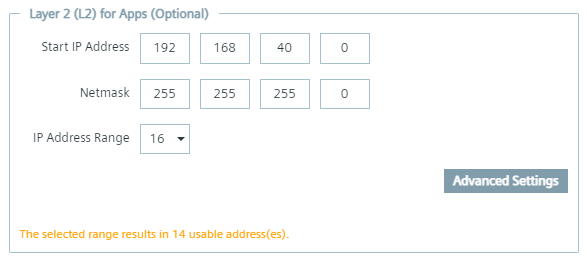
Depending on the starting IP address and the IP range of the Layer 2 network access, defined by the subnet that you provide, a certain amount of IP addresses are available for the Layer 2 network access. In this example, the IP address range shows 16 reserved IP addresses. Since 1 IP address is reserved for the gateway and 1 is reserved for the network itself, 14 IP addresses are usable. Setting up a Layer 2 network access configuration with just 2 reserved IP addresses is not valid since 2 IP addresses are reserved by default, 1 for the gateway and 1 for the network itself.

To use the Layer 2 network access, the selected IP address range must be minimum 3.
NOTICE
The amount of usable IP addresses is always displayed in the dialog.
When you click Advanced Settings, you can specify which IP addresses can be used for the Layer 2 network access in the defined IP range.
After clicking Advanced Settings, a list with several IP addresses, depending on the starting IP address and the IP range, are displayed, as shown below for example:
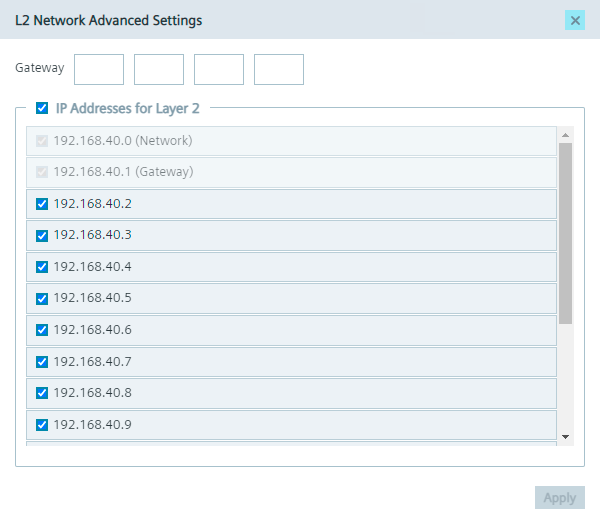
By selecting an IP address, the IP address can be used for the Layer 2 network access for apps. By not selecting an IP address, the IP address is blocked and will not be used.
Again, since 1 IP address is reserved for the gateway and 1 is reserved for the network itself, minimum 1 IP address other than these 2 must be selected. Otherwise, an error will be displayed.
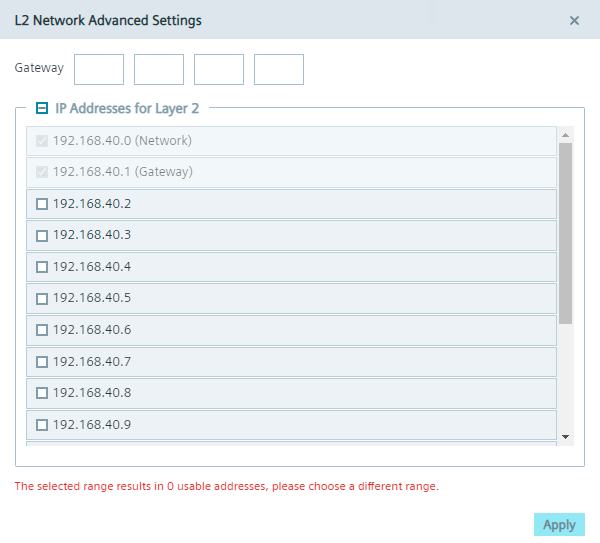
By default, the gateway is within the entered IP range. Under Gateway, you can define an IP address for the gateway to obtain 1 more available IP address in the given IP range, but the IP address of the gateway must be within the entered subnet.
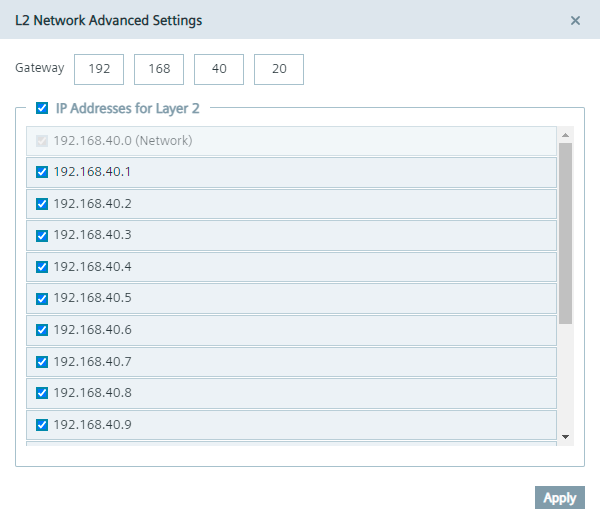
If you select the maximum available IP address range back in the Layer 2 (L2) for Apps section, 1 IP address will be also reserved for broadcast, as shown below for example.
To save the Layer 2 network access changes, click Apply.