Authorization Concept
Industrial Edge Management Pro V2 introduces a fine-grained access control concept to manage users, resources, and roles while ensuring security and collaboration.
Key Concepts of Authorization
IEM implements a fine-grained access control model to manage access permissions at a detailed level. Instead of granting broad permissions, fine-grained control ensures that users can perform only specific actions on specific resources. This level of granularity enhances security and supports compliance with enterprise policies.
To support collaboration, you can share resources from different abstraction layers as described in the following sections.
Resource Sharing from IEM with Role Templates
If you use IEM, you can share resources such as Applications and Device Groups that you already have access to. Resource sharing is simplified through predefined templates. This enables consistent and efficient permission assignments. These templates define default configurations for sharing, minimize administrative overhead, and ensure that access complies with established organizational standards.
Examples:
- Device Group Sharing: You can create and share Device Groups with specific users to streamline collaboration. This feature replaces the
My Admin Groupsfunctionality from the old UI. - Application and Version Sharing: Applications along with their individual versions can be shared with other users. This is the successor to the
My User Groupsfeature from IEM Pro v1.
See also:
Role Management from IAM
The backend Identity and Access Management (IAM) system provides advanced role management for IT professionals. Admins can create dedicated roles by specifying allowed actions for each resource. This role-based approach enables the customization of permissions to align with organizational requirements and workflows.
- Action and Resource Validation: Actions are explicitly defined for specific resources, for example devices, applications, and IEM. This ensures that users perform only authorized actions.
See also:
Foundations of IAM
The Identity & Access Management (IAM) system is central to configuring roles and permissions. It ensures proper authorization and secure collaboration across resources within IEM. IAM is powered by Keycloak.
Predefined IAM Roles
There are two predefined IEM roles for the ie-management client:
- Admin.
- User.
NOTICE
To ensure proper access to IEM, every user must be assigned at least one predefined role.
Admin
The Admin role provides the highest level of access in the Industrial Edge Management system. This role is designed for IT professionals who need to manage both users and resources extensively. Key capabilities of the Admin role include:
- Full access to all Industrial Edge Management functionalities.
- Visibility and control over the Identity & Access Management (IAM) tile.
- All permissions granted under the
Userrole, along with additional service-specific privileges.
User
The User role is tailored for people who manage their own resources within the Industrial Edge Management system. This is the default role required to access the platform’s primary features. Key capabilities of the User role include:
- Basic access to the Industrial Edge Management platform.
- The ability to create and manage personal resources, such as Applications, Devices, and Device Groups.
- Access to the App Catalog for installing and managing applications.
See also: Foundations of IAM
NOTICE
There is one additional predefined role: appimporter
This can be assigned to a User to give access to import applications (via Sideloading, IE App Publisher, IECTL, API or Mendix).
Mapping Users to Group Roles and Default Roles
Adding a Default Group to Users
You can also create a new group with the same Role Mappings.
To add a default group to users, proceed as follows:
- Navigate to Groups and create a new group.
- Enter a name for the group.
- Set
Role Mappingsfor the group. - Click on the group name in the group list.
- Switch to the Role mapping tab and click on Assign role.
- Switch the Filter to Filter by clients.
-
Select the roles you want to assign from the list.
The roles for the Industrial Edge Management app have the client ID
ie-management. -
Click on Assign.
The selected roles are assigned to the group.
You can now add this group to the Default Groups.
Proceed as follows:
- Go to Realm settings and switch to the User registration tab.
- Select Default groups and select the group you created from the list.
- Click on Add.
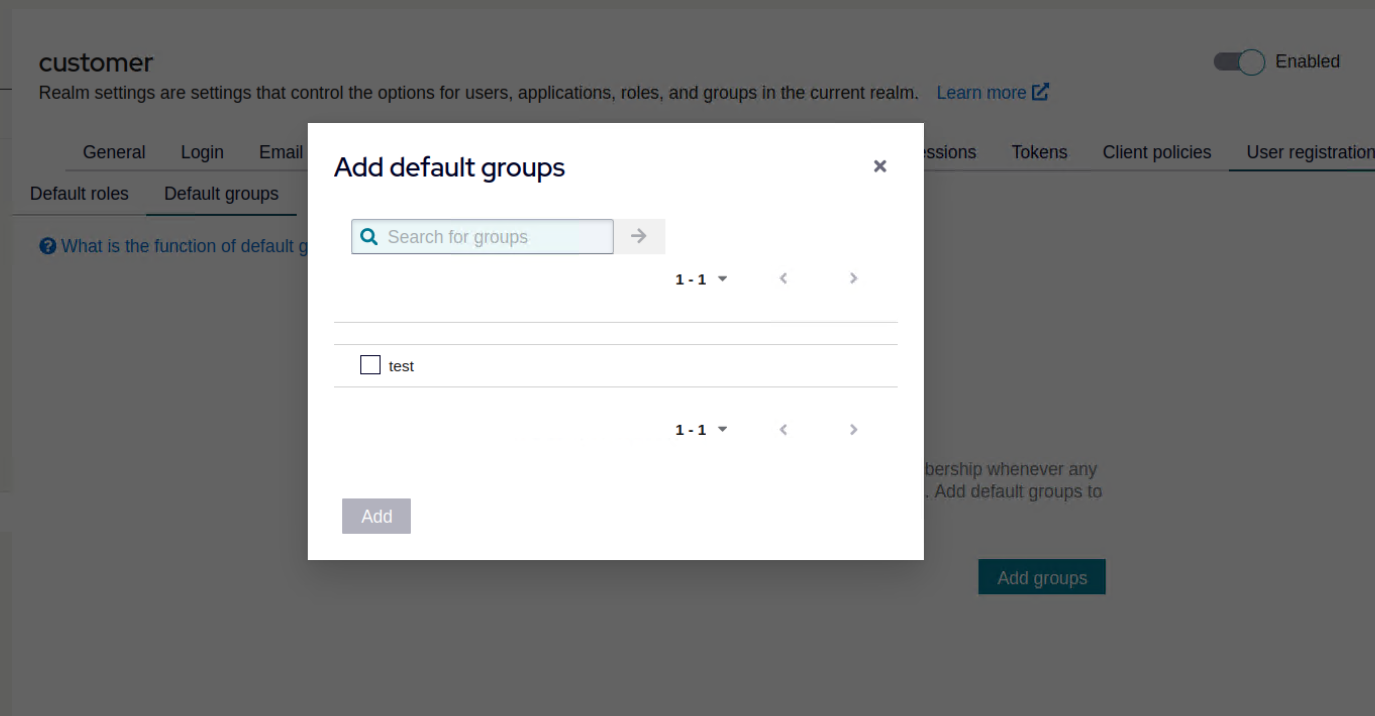
Any new user will be a member of this default group and will have the added roles.