Proxy Settings
Proxy network
When you click the "Proxy Network" tile, you open the proxy settings of the Edge Device.
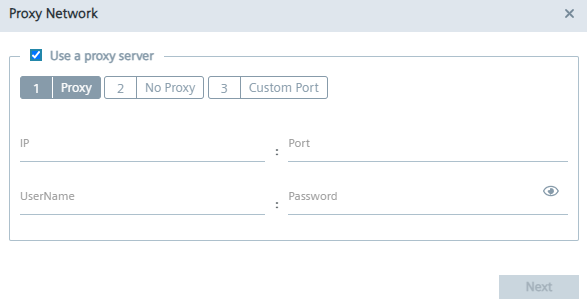
You configure the following proxy settings:
-
Proxy
-
No proxy
-
Custom port
NOTICE
Only HTTP proxies are supported. SOCKS5 proxies are not compatible and will not work.
After you have configured the proxy settings, you save the proxy settings by clicking "Configure".
Proxy
In the "Proxy" tab, you activate, if needed, the use of a proxy server and configure the proxy server.
To configure the proxy server, proceed as follows:
In case of an additional authentication for the proxy server, enter username and the corresponding password in the according input fields. When authentication is required, the proxy username and password must match the following criteria:
- To use a proxy server, click the "Use a proxy server" check box. The input fields for the proxy server are enabled.
- Enter the IP address and the corresponding port of the proxy server in the according input fields.
- In case of an additional authentication for the proxy server, enter username and the corresponding password in the according input fields.
- For the username, only English letters (A-Z, a-z), digits (0-9), and the following special characters are allowed: backslash (\) and hyphen (-). Spaces and other special characters are not allowed.
- The password must be no longer than 21 characters.
- For the password, only English letters (A-Z, a-z), digits (0-9), and the following special characters are allowed: underscore (_), dollar ($), exclamation (!), asterisk (*), and hyphen (-). Spaces and other special characters are not allowed.
NOTICE
These proxy username and password criteria are enforced in IEDK v1.26.4, v1.28.1, v1.29.0, and later.
In other IEDK versions, special characters in proxy usernames or passwords may cause inconsistent behavior and connectivity issues.
Upgrade approach for older IEDK versions
If authentication policies require special characters and an older IEDK version is being used, use the following upgrade approach:
- Upgrade to IEDK v1.26.4, v1.28.1, v1.29.0, or later.
- Remove the existing proxy configuration.
- Re-apply the proxy configuration using special characters that meet the criteria enforced by the IE Runtime.
NOTICE
The settings apply for HTTP proxy servers only. HTTPS proxy servers are not supported by the IE Runtime.
No proxy
In the "No Proxy" tab, add all IP addresses which shall be accessed directly (without use of proxy).
By default, several no proxy addresses are listed which are required to communicate with the IEM.
If you want to add a further IP address which shall be accessed directly, enter the IP or domain in the "IP" input field and click the
 icon.
icon.
You can delete No Proxy IP addresses with the
 icon.
icon.
Custom port
In the "Custom Port" tab, you configure ports for apps which use the configured ports for outgoing communication through the proxy on HTTP or HTTPS protocols.
By default, several ports are listed which are required by the Edge Device.
NOTICE
Default no proxy addresses and ports The default no proxy addresses can be deleted, but default custom port can not be deleted.
If you want to add a port, select the required protocol from the "Protocol" drop-down list and enter the required port.
To add the port, click the
icon.
Related task
For a detailed guide on this use case, see Access public domains with an application.