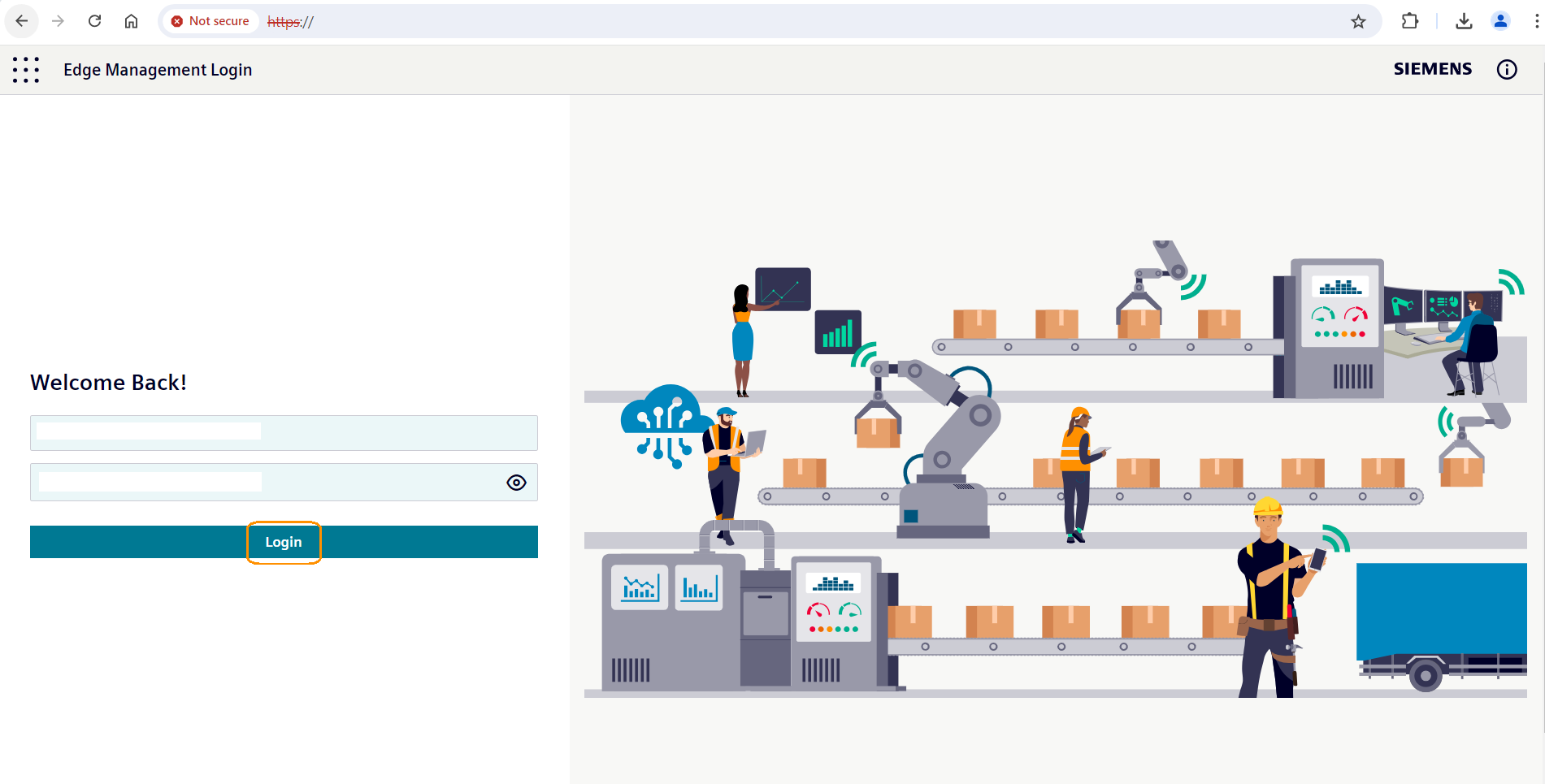
Provision the IEM Virtual
Overview
User is encouraged to follow the IEM Virtual Setup Documentation before provisioning the virtual machine.
Prerequisites
- IP address must be either static or the MAC address reserved in the DHCP server.
- You have created a IEM Instance in the Industrial Edge Hub and downloaded the corresponding IEM configuration file. Refer to IEM Instances and Managing IEM instances
- Refer to the contacted domain names section to ensure that all domains required for
Communication from IEM to IE HubandAdditional communication from IEM Virtual to IE Hubcan be accessed by the virtual machine instance. - The time on ESXi servers or VMWare workstations is set to Coordinated Universal Time (UTC) and synchronized to a reliable and accurate time source.
Provisioning considerations
- The email address and password used for Provisioning will also be used for IEM Application access.
- Provisioning steps may take some time (around 15 minutes or more) depending on Internet speed and how fast the required application images can be pulled from the IE Hub server.
- The provisioning file is valid for only 1 hour. If not used within this time frame, the user needs to download a new file from the IE Hub server.
- If provisioning fails, the user can either perform a Factory Reset by clicking the Factory Reset button in the First Boot Wizard or set up the IEM Virtual again.
Network Topology and Security considerations
- Given the increased security risks and complexity associated with network changes, IEM Virtual instances utilizing IP-Based Certificates are designated solely for testing purposes and must not be used in production environments. This restriction also extends to self-signed certificates. While such configurations offer a convenient method for initiating Proof of Concept (PoC) projects, they are not recommended for use in operational environments.
- Productively used IEM Virtual instances require assignment of a static IP address and must be associated with a fully qualified domain name (FQDN) resolvable by a DNS server. IED devices must be onboarded to the IEM Virtual instance using this FQDN, facilitating future changes to the IEM Virtual's IP address.
Certificate Requirements for IEM Virtual
When provisioning IEM Virtual, ensure your certificates and keys meet the following requirements to avoid provisioning errors:
Format & Extensions
-
Only PEM-encoded certificates and keys are supported.
-
Certificates must have a .crt file extension.
-
Private keys must have a .key file extension.
-
The format must follow the X.509 PEM standard.
Supported Private Key Standards
- Private keys must use the RSA algorithm.
- Only PKCS#1-based RSA private keys are supported. File content typically starts with:
-----BEGIN RSA PRIVATE KEY-----. - Private keys can be generated using different cryptographic algorithms, such as RSA or Elliptic Curve (EC)
- Certificates must have a minimum validity period of 30 days at the time of deployment.
Please refer to the certificate section for more details.
Provisioning the IEM Virtual
Once the IEM Virtual Setup is complete, please navigate to the IP address of your IEM Virtual instance by visiting http://IP.
To start the First Boot Wizard click on the Start Setup.
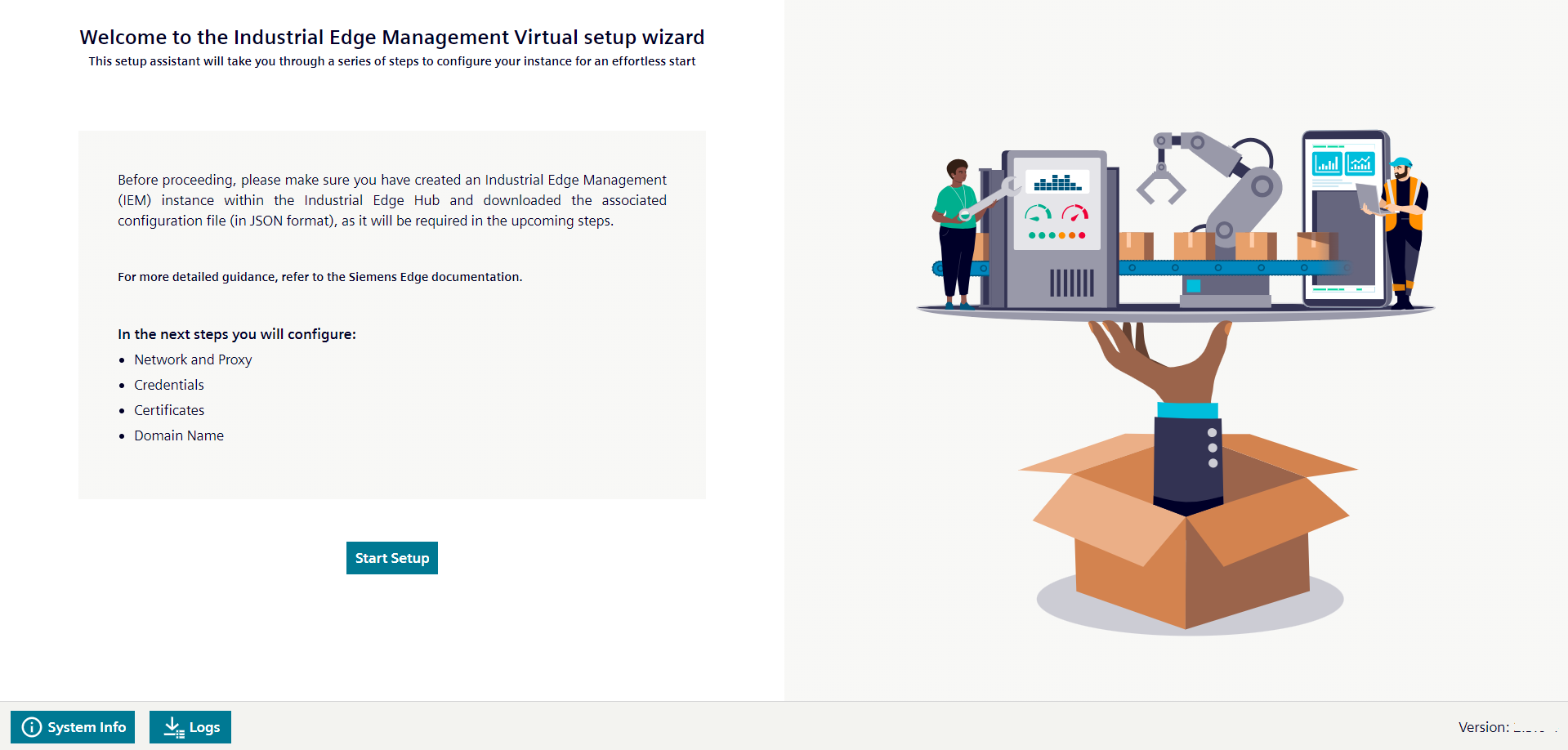
Follow the steps to provision the IEM Virtual:
Network & proxy
On the setup page under Network & Proxy, modify the Network and Proxy details if required.
-
Network - Enter the network details, by default network is configured with DHCP. To configure static IP ADDRESS please uncheck the 'DHCP'.
-
Proxy - Enter the proxy server details. To enable editing please check the 'Use proxy server'.
Click on Update to save the changes.
NOTICE
If there are no changes required under this section of the wizard you can simply click on Next and go to the next step.
Credentials
On the setup page under Credentials, enter the following details and click the Next button.
- Valid Email Address
- Password
The password must meet the following criteria:
- Minimum of 12 characters.
- At least 1 uppercase letter.
- At least 1 number.
- At least 1 special character. The following characters are recognized as special characters: ! @ $ # * & %
- Confirm Password
System Settings
On the setup page under System Settings, the user can configure certificates and provide the onboarding JSON file generated in the IE-HUB for this IEM Virtual instance.
-
Self-Signed Certificate: Select this option to create a self-signed certificate using the first boot wizard. You can enter your certificate details, and the wizard will generate the certificates for you.
-
Custom Certificate: Upload the files to proceed with the setup. Select this option to provide custom certificate and private key files.
NOTICE
Only PEM-encoded certificates are supported. Certificates must have a
.crtextension, and private keys must have a.keyextension, following the x509 PEM format. PEM is the container format used to store the keys and certificates. The private keys can be issued using different cryptographic algorithms such as RSA, ASN1 OID. IEM Virtual only supports PKCS#1-based private keys. Using a different RSA standard such as PKCS#8 or non-RSA-based private keys will result in an error during IEM Virtual provisioning.Additionally, ensure that the certificates have an expiration date of at least 30 days when deploying the IEM.
Required Key Usage (KU) & Extended Key Usage (EKU)
Your server certificate must include the following Key Usage values:
- Digital Signature – It allows the server to sign parts of the TLS handshake so clients can verify its identity.
- Key Encipherment – It enables secure exchange (encipherment) of session keys during the TLS handshake.
- Data Encipherment – It ensures application data can be encrypted; required for compatibility with some clients.
It must also include Extended Key Usage entries that define what the certificate is permitted to do:
- Server Authentication – Allows the certificate to be used by the IEM Virtual as a secure (HTTPS) server.
- Client Authentication – Enables the certificate to be presented as a client in mutual TLS scenarios (planned / future use).
If any of these usages are missing, provisioning will fail.
Example (OpenSSL configuration excerpt):
[ req_ext ]
keyUsage = digitalSignature, keyEncipherment, dataEncipherment
extendedKeyUsage = serverAuth, clientAuth
Please refer to the certificate section for more details.
-
Onboarding JSON file Provide the Onboarding JSON file by clicking on the Upload file button
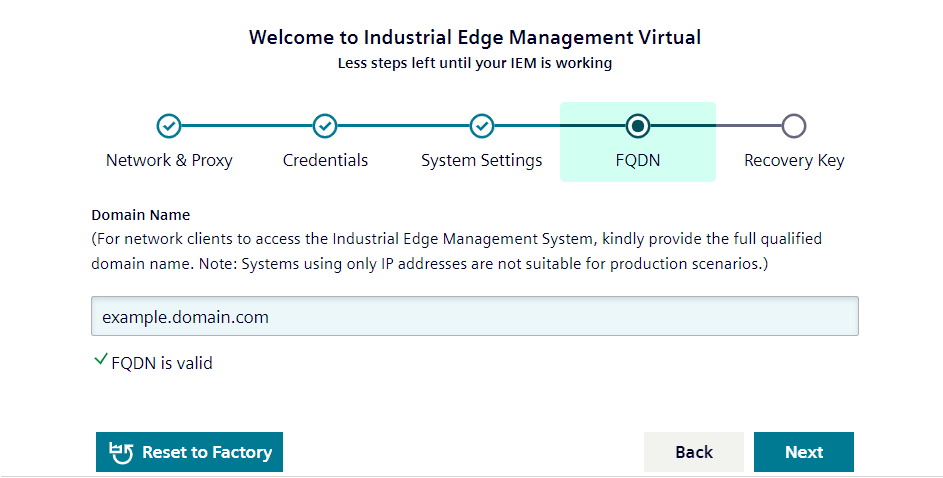
Fully Qualified domain name
A fully qualified domain name is required for your IEM Virtual instance if you are using it in a production environment. Without a domain name, your Industrial Edge Devices (IEDs) may become disconnected if you need to change the IP address of your IEM Virtual instance.
If you do not plan to set up a production environment, you can leave the field blank and click on "Next". Without a domain name, your IEM Virtual instance will rely solely on IP addresses, which can weaken the security of your certificates. Certificates are more secure when associated with a DNS name.
Recovery key
On the setup page under Recovery Key, note down the key and store it in a safe location where no-one can access it.
Confirm this with the check mark.
Also confirm the check mark about the business continuity plan for the regular backup creation and then click Submit.
Usage of the recovery key
The recovery key is a critical component of the IEM Virtual setup process. It is important to note down the recovery key during the setup and store it in a secure location to prevent unauthorized access. The recovery key can be used for the following purposes:
- Maintenance Operations: The recovery key allows you to log in on port 4443 to perform maintenance tasks. These tasks include changing the IP address, network mask, gateway, and DNS settings, which is useful if the DNS server cannot resolve the FQDN, potentially causing temporary authentication issues when logging into the IEM application.
- Recovery Scenarios: Future updates will leverage the recovery key in scenarios where users are unable to log in to the IEM application, providing a means to regain access.
- Siemens Support: In certain maintenance scenarios, the Siemens support team may ask you to use the recovery key on your IEM Virtual in order to perform advanced troubleshooting.
- Log Retrieval: If you cannot access the IEM application, the recovery key allows you to log in and download log files, which can be helpful for troubleshooting.
NOTICE
Never share your recovery key with anyone, including Siemens support personnel. You can generate a new recovery key at any time using the Service and Maintenance applet.
Provisioning and Login to the Launchpad
Provisioning will start once you have clicked Submit and progress will be displayed.
Once Provisioning is finished, the button Edge Management on the First Boot Wizard will be displayed.
Clicking this button will redirect the browser to the IEM application page.
During onboarding if onboarding gets failed due to any reason then user can Factory Reset the IEM Virtual.
Click Reset to Factory and confirm the operation.
Wait for the operation to finish.
NOTICE
When transitioning from DHCP to static network settings and subsequently performing a factory reset, users must be attentive to the repercussions on the ESXi server's IP configuration. The factory reset operation not only resets the system's overall settings but also reverts the IP address to default values.
The IEM application landing page is called the Launchpad.
User will need to use the same credentials to login to it.
Once logged in, the user can perform further operations as provided by the IEM application.