Device group management
General
Device group management enables you to organize your existing groups and create new device groups. You can add or remove devices and users, manage user permissions within a group, or delete a group as needed.
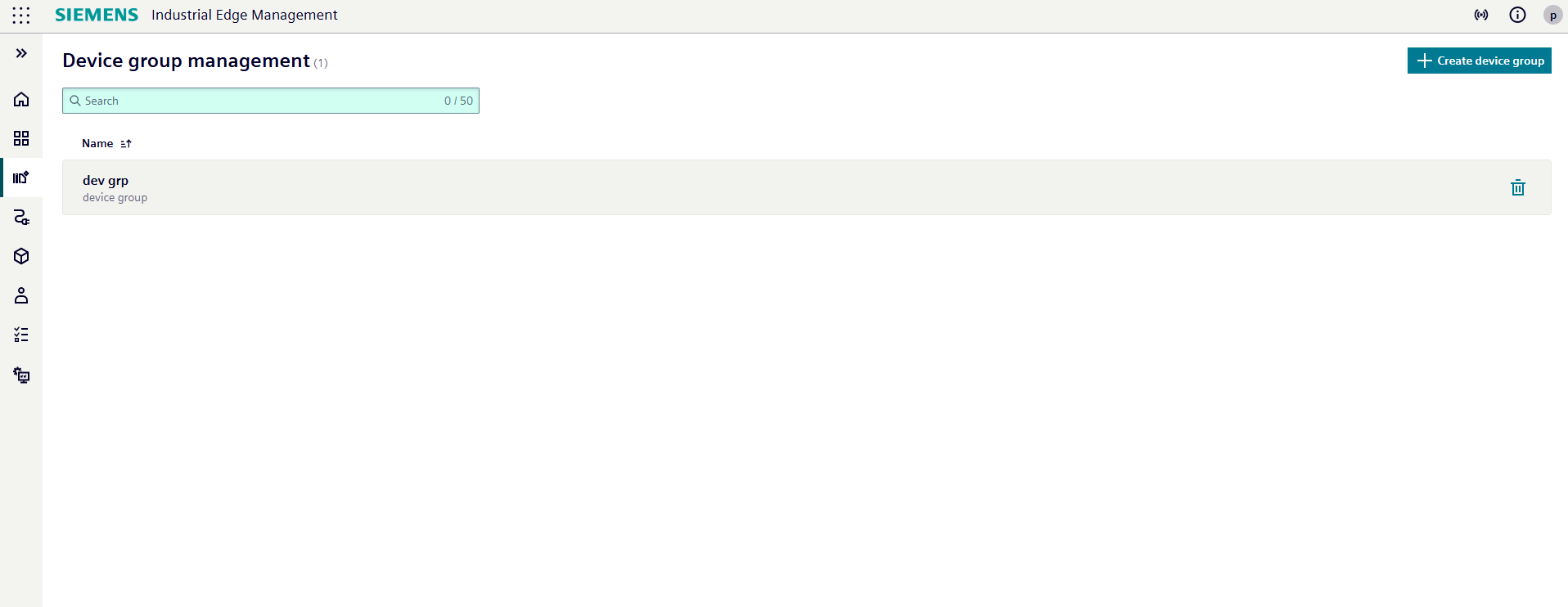
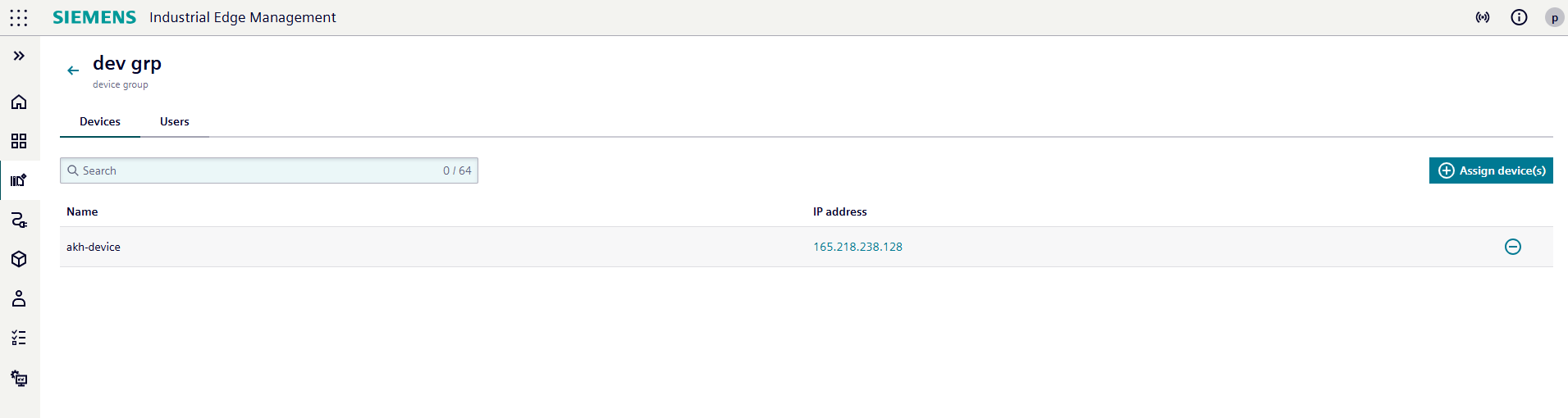
Click on a device group to open its details page, where you can view and manage the assigned devices and users.
Access Requirements
- A group is visible to its creator and to users with the Admin role of the ie-management client.
- Devices can be managed by the group creator and by users with the Admin role of the ie-management client.
- Users can be managed by the group creator and by users with the Admin role of the ie-management client.
Devices
To add new edge devices to the group, click the Assign device(s) button.
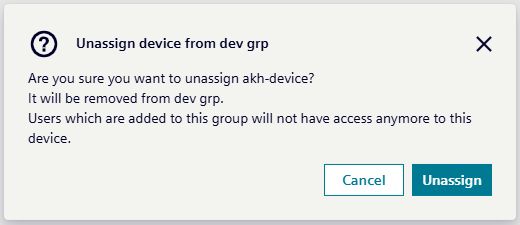
To remove assigned devices, click the  button next to the device.
When you click the unassign button, a confirmation modal will appear. Confirm your choice to complete the unassignment.
Users
NOTICE
The Assign user(s) functionality enables user enumeration, as only email addresses of existing users can be successfully used. Attempting to assign a non-existent email address will fail, thus revealing whether a user exists in the system.
Switch to the Users tab to manage the users assigned to the group.
-
To add a new user, click the
Assign user(s)button.
You can assign multiple role templates to a user by repeating the assignment process with different templates for the same email address. -
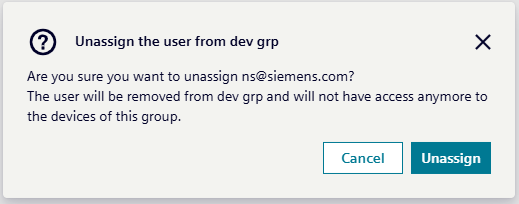
To remove a user, click the
button next to the user's name.
When you click the unassign button, a confirmation modal will appear. Confirm your choice to complete the unassignment. This will remove all role templates assigned to that user.
NOTICE
Each user must be assigned at least the predefined User role of the ie-management client to ensure proper access to IEM.